Medihertz Caption Studio
0.02
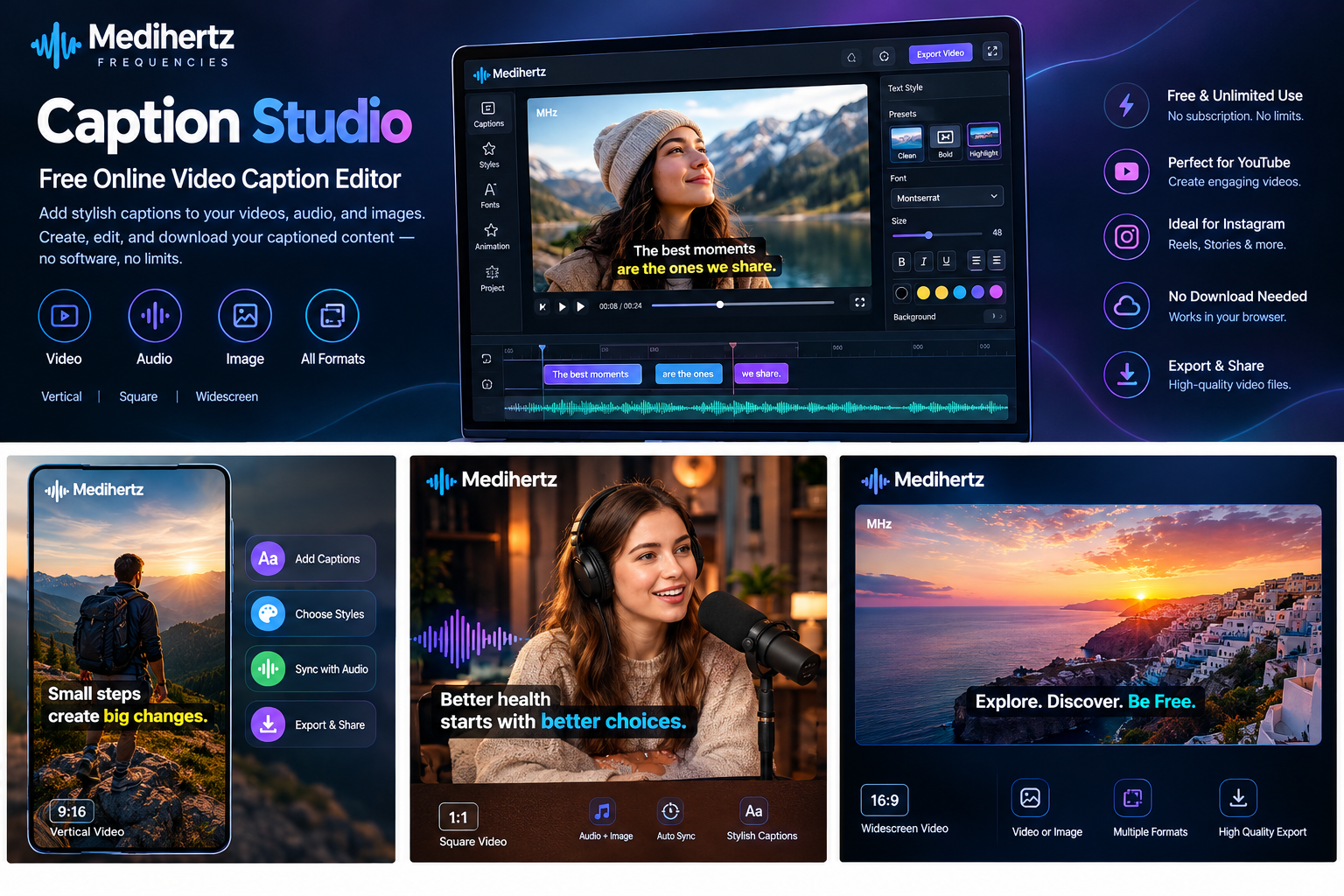
Medihertz Caption Studio — Free Online Video Caption Editor
Create professional captioned videos online with Medihertz Caption Studio, a free video caption editor from Medihertz Frequencies. Add stylish subtitles to videos, synchronize captions with audio, customize text fonts and colors, and turn audio recordings or images into shareable videos.
Create content for YouTube, Instagram Reels, educational videos, podcasts, music projects, and other social media platforms. Choose vertical, square, or widescreen video formats, preview your captions, and export your finished video directly to your device.
Medihertz Caption Studio works in your web browser. No desktop software installation is required, and you can return to the tool whenever you need to create another project.
What Is Medihertz Caption Studio?
Medihertz Caption Studio is a free online caption editing and subtitle creation tool designed for video creators, musicians, podcasters, educators, digital publishers, and social media professionals.
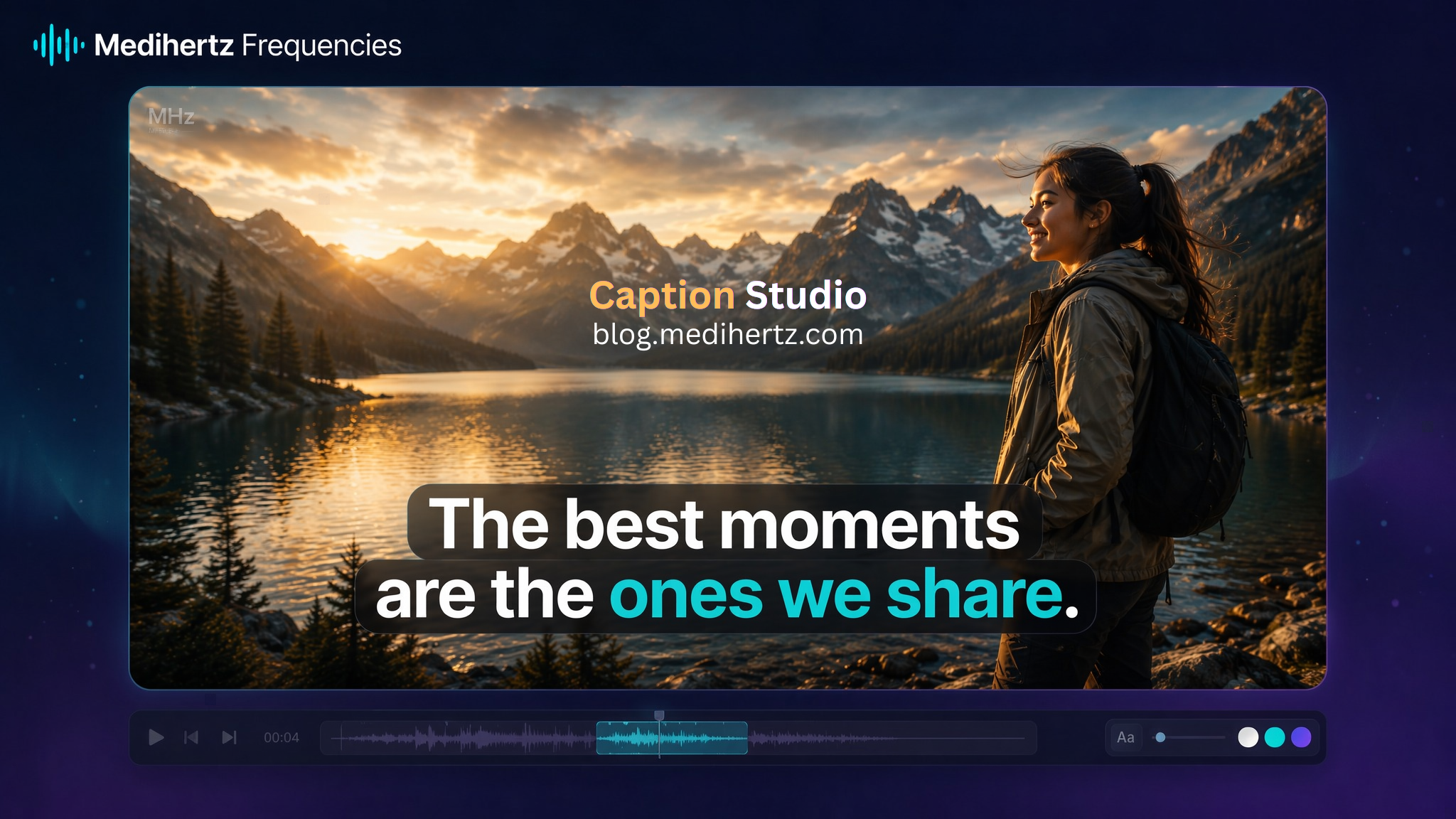
Part of the Medihertz Frequencies digital tools ecosystem, it combines media playback, caption editing, a visual timeline, customizable text styles, subtitle controls, and video export in one browser-based workspace.
Use it to add captions to videos, create visual content from audio recordings, combine images with sound, and prepare videos for different social platforms. You can edit subtitle timing and appearance before rendering the final project.
Key Features of Medihertz Caption Studio
1. Free Online Caption Editing with Unlimited Repeated Use
Use Medihertz Caption Studio to create and edit caption projects without a paid subscription or tool-imposed usage-credit system. Work on multiple projects and return whenever you need to prepare more content.
The tool is designed for repeated use without a fixed number of projects or exports imposed by the application. Individual file sizes, video duration, rendering speed, and performance can still depend on your device and browser.
2. Add and Edit Video Subtitles
Upload a supported video and create subtitles that appear at the correct time during playback. Write your own caption text, correct mistakes, adjust start and end times, and organize your captions using the visual timeline.
Review every caption against the video before exporting. This makes the editor useful for tutorials, interviews, product demonstrations, educational videos, short-form content, and other spoken-video projects.
3. Create Stylish Captions with Professional Text Styles
Make your subtitles more engaging with customizable text styling. Depending on the available controls, you can adjust font family, font size, text color, bold formatting, outlines, shadows, backgrounds, alignment, and caption positioning.
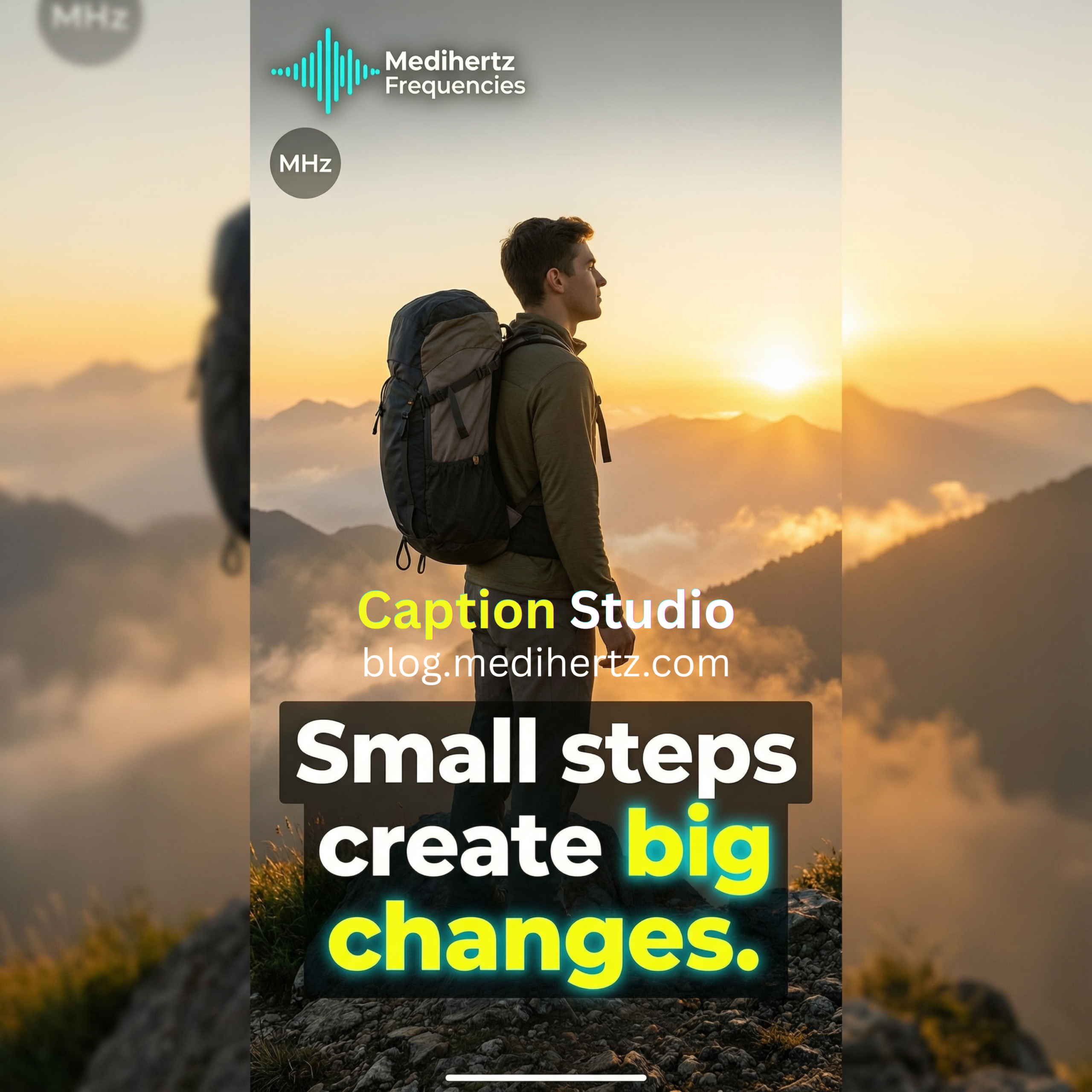
Choose a clean subtitle style for educational content, bold typography for short videos, or a cinematic look for storytelling. Apply consistent styles to your captions and preview the results before rendering.
4. Turn Audio into Captioned Videos
Use a supported audio file as the soundtrack for a new video project. Add your own captions and combine the audio with an image or video background to create a visual presentation.
This is useful for podcasts, music promotion, voiceovers, motivational messages, guided meditation, spoken-word recordings, and educational audio.
The audio remains the main soundtrack, while your selected visuals and captions turn the project into a video suitable for sharing. Automatic speech transcription requires a compatible transcription engine; manual caption editing is available independently.
5. Add Images or Video Backgrounds to Audio
Transform audio recordings into visual content by adding a photograph, cover image, artwork, or background video. Position your captions over the visuals and preview the complete composition.
Create podcast audiograms, music clips, quote videos, narration videos, and other audio-led projects without needing a separate desktop editing application.
6. Create Vertical, Square, and Widescreen Videos
Prepare videos for different publishing formats using the supported aspect-ratio options.
- Vertical 9:16: Suitable for Instagram Reels, YouTube Shorts, and other vertical-video platforms.
- Square 1:1: Useful for square social posts and promotional content.
- Widescreen 16:9: Suitable for YouTube videos, tutorials, presentations, and landscape projects.
Check caption placement and visual composition in your selected format before exporting. The best aspect ratio depends on the platform and the type of content you are creating.
7. Edit Captions with a Visual Timeline
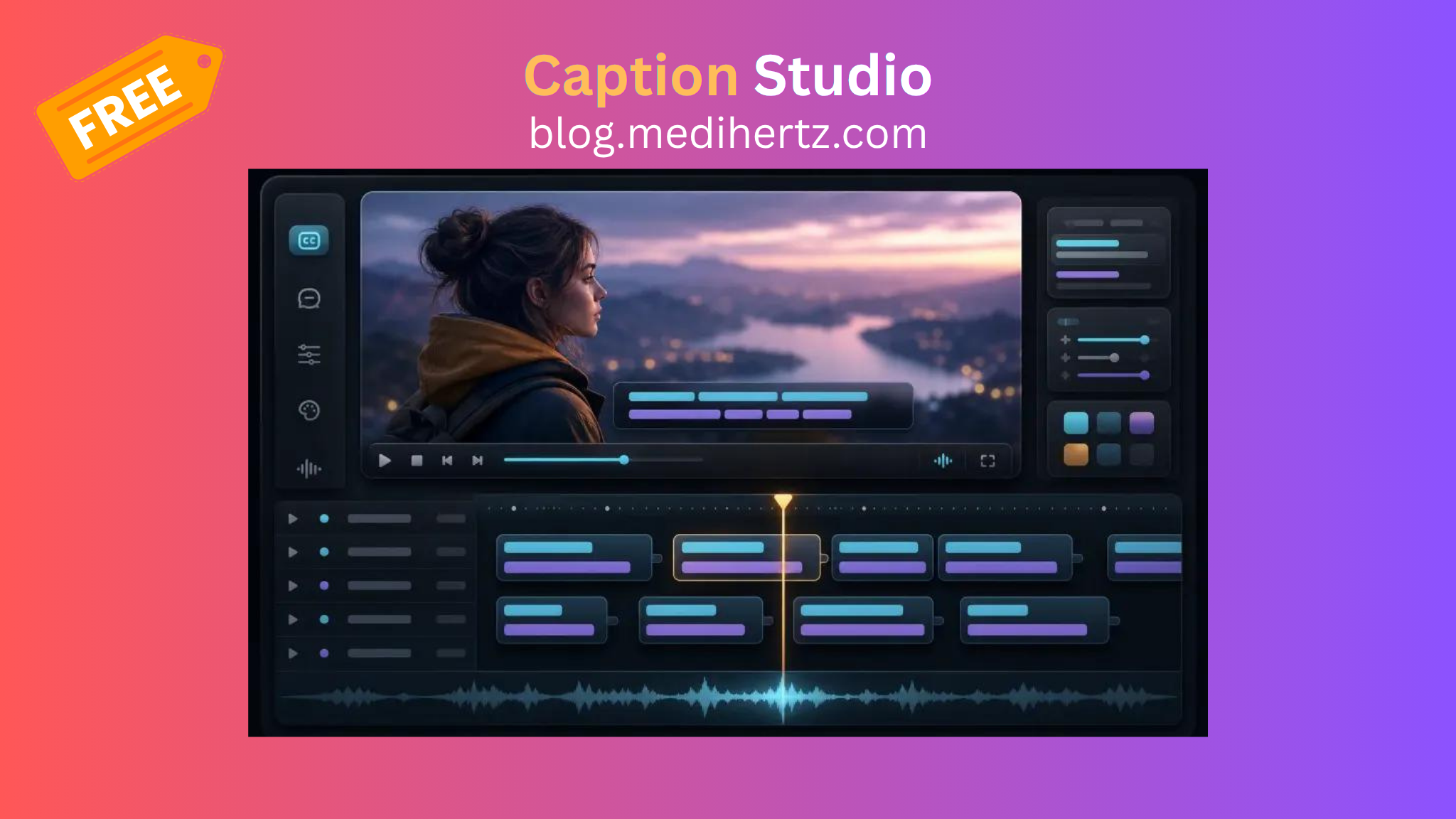
The caption timeline helps you see how your subtitles are arranged throughout the project. Select caption blocks, edit their text, adjust timing, and navigate to specific moments in your video or audio.
Because caption editing and playback are connected, you can review your changes in context and correct timing before rendering the finished video.
8. Customize Caption Animations
Use the supported animation options to create more dynamic subtitles. Depending on the selected controls, you can apply effects such as fade, pop, slide, word-by-word reveal, or karaoke-style highlighting.
Keep your animations readable and consistent with the style of your video. Preview the effects during playback before exporting.
9. Export and Download Captioned Videos
When your editing is complete, render your project and download the resulting video to your device. The finished video can include the background visuals, edited captions, supported animations, and the fixed Medihertz MHz watermark.
The available output format depends on browser codec support. After downloading, play the file to verify that the video, captions, and audio are working correctly before uploading it to another platform.
10. Import and Export Subtitle Files
Medihertz Caption Studio supports subtitle workflows using SRT and VTT files. Import compatible subtitle files for editing or export your finished captions for use in other supported video applications.
You can also download a plain-text transcript for reference or further editing. Review the subtitle text and timestamps before reusing them elsewhere.
11. Consistent Medihertz MHz Branding
The editor includes a small, fixed MHz watermark in the top-left corner of the video. Its subtle appearance provides consistent branding without distracting from your content.
When supported by the rendering workflow, the watermark is embedded directly into the exported video frames rather than appearing only in the editor preview.
Who Can Use Medihertz Caption Studio?
YouTube creators: Add captions to tutorials, commentary, educational videos, interviews, and other YouTube content.
Instagram and short-form video creators: Prepare captioned vertical videos, Reels, promotional clips, and social media posts.
Musicians and music producers: Combine audio with artwork, visual backgrounds, and captions for music-related content.
Podcasters: Turn audio recordings into captioned videos with cover images or moving backgrounds.
Meditation and wellness creators: Create visual presentations for guided meditation, relaxation audio, mindfulness content, and spoken affirmations.
Educators and trainers: Prepare captioned lessons, demonstrations, presentations, and learning materials.
Businesses and digital publishers: Create captioned product demonstrations, announcements, marketing videos, and informational content.
How to Add Captions to a Video Online
- Open Medihertz Caption Studio in your web browser.
- Upload a supported audio or video file.
- For audio projects, add an image or video background.
- Create captions manually or import a compatible subtitle file.
- Edit the caption text, timing, fonts, colors, backgrounds, and supported animations.
- Select a suitable video format, such as vertical, square, or widescreen.
- Preview the project and check that the captions are synchronized.
- Render the video, wait for export to finish, and download the resulting file.
- Play the downloaded video to confirm that the captions, audio, visuals, and MHz watermark appear correctly.
Is Medihertz Caption Studio Free?
Yes. Medihertz Caption Studio is offered as a free online tool within the Medihertz Frequencies ecosystem. The application is designed for unlimited repeated use without a tool-imposed subscription or usage-credit limit.
You can create caption projects, style subtitles, combine supported audio and visual media, and export finished videos without installing a desktop editing program.
Unlimited repeated use does not mean unlimited file size or processing capacity. Available formats, rendering speed, maximum practical project duration, and memory usage depend on the browser and device.
Do I Need to Download Software?
No desktop software installation is required. Open Medihertz Caption Studio in a compatible browser, import your media, edit the captions, and export your project.
The tool uses browser-based media capabilities wherever supported. Larger files and high-resolution projects may require more device memory and processing time.

Frequently Asked Questions
What is Medihertz Caption Studio?
Medihertz Caption Studio is a free online video caption editor from Medihertz Frequencies. It helps users edit subtitle text and timing, customize caption styles, work with supported audio and video files, and export captioned videos from a browser.
Can I add subtitles to a video online for free?
Yes. You can use Medihertz Caption Studio to add and edit captions, adjust subtitle timing, preview your changes, and download a finished video without installing a desktop editing application.
Can I use Medihertz Caption Studio for YouTube?
Yes. You can prepare captioned videos for YouTube using the editor’s supported media, styling, and export features. Review the final video and confirm the output format before uploading.
Can I create Instagram Reels with captions?
Yes. Use the vertical 9:16 format for a Reels workflow, customize your captions, preview their position within the frame, and export the finished video in a supported format.
Can I add captions to an audio file?
Yes. Use a supported audio file as the soundtrack, add caption text, and combine it with an image or video background to create a video. Automatic transcription requires a compatible speech-recognition engine, while manual caption editing does not depend on automatic transcription.
Can I turn an image and audio into a video?
Yes. Add a supported image as the visual background, use your audio as the soundtrack, create captions, and render the composition into a video when supported by your browser.
Can I customize caption fonts and colors?
Yes. The editor provides styling options for supported fonts, text sizes, colors, backgrounds, formatting, positioning, and animation effects.
Can I download the finished video?
Yes. Render the project and use the download control to save the resulting video to your device. The available file format depends on browser codec support, so check that the downloaded video plays correctly.
Does the tool support SRT and VTT subtitles?
Yes. The editor supports SRT and VTT import and export workflows, allowing you to reuse compatible subtitle data in other applications.
Does Medihertz Caption Studio automatically generate subtitles?
Automatic caption generation depends on a compatible and functioning transcription engine. When automatic transcription is unavailable, you can still create, import, and edit subtitles manually.
Does the tool work on mobile devices?
The editor is designed for responsive browser use. Performance depends on your device, browser, media format, file size, and available memory. A desktop or laptop may be more suitable for longer or high-resolution projects.
Create Your Next Video with Medihertz
Bring your audio, visuals, and captions together with Medihertz Caption Studio. Whether you are preparing YouTube content, Instagram Reels, a podcast clip, a music video, or a meditation presentation, use the browser-based editor to style your subtitles and prepare a video for sharing.
Medihertz Frequencies — creative tools for sound, content, and digital experiences.
☸